
Table of Contents
Introduction :
Meta Business Suite is one of the most powerful free tools available for businesses that want to manage Facebook and Instagram from one place. Yet many business owners still feel confused, overwhelmed, or frustrated when they first open the dashboard.
The interface can seem packed with features, tabs, and data that aren’t always easy to understand at first glance. Without proper guidance, it’s easy to miss important tools that could actually save time and improve marketing results. That’s why learning how it works step by step makes a big difference.
If you’ve ever thought:
- “Why is everything inside Facebook so complicated?”
- “Where do I manage ads, messages, and posts?”
- “Why can’t I see my page insights properly?”
- “Am I even using the right account?”
You’re not alone.
In this complete 2026 beginner’s guide, you’ll learn exactly what Meta Business Suite is, how to set it up step-by-step, how to avoid common mistakes, and how to use it strategically to grow your business. You’ll also understand how to manage pages, connect ad accounts, schedule content efficiently, and track performance insights without feeling overwhelmed.
Whether you’re a small business owner, startup founder, content creator, or agency, this guide will simplify everything. It breaks down complex features into easy, actionable steps so you can start using the platform with confidence and clarity from day one.
What Is Meta Business Suite ?
Meta Business Suite is a centralized dashboard by Meta that allows you to manage your Facebook Page, Instagram account, ads, messages, content, and analytics from one platform. It brings all your essential marketing tools together in a single interface, making it easier to handle daily tasks without switching between multiple apps. With built-in insights and scheduling features, it helps businesses stay organized, respond faster to customers, and make data-driven decisions more efficiently.

Instead of switching between:
- Facebook Page
- Instagram app
- Ads Manager
- Inbox
- Insights dashboard
You get everything in one place.
It is designed for:
- Small businesses
- eCommerce brands
- Local businesses
- Marketing agencies
- Social media managers
If you are serious about growing on Facebook and Instagram, Meta Business Suite is not optional anymore — it’s essential. Meta Business Suite helps you manage your presence professionally, track performance accurately, and make smarter marketing decisions that directly impact your business growth.
Why Businesses Struggle Without It ?

Before we jump into setup, let’s talk about real pain points.
1. Posting Inconsistency
Many businesses post randomly because they don’t plan content properly. This leads to low engagement and poor reach.
2. Missed Messages & Leads
Customers send DMs or comments — but no one replies on time. Lost leads = lost revenue.
3. No Clear Data
You boost posts but don’t understand:
- Where money is going
- Which ad is working
- What content converts
4. Team Access Confusion
Giving passwords to team members is risky. Removing access later becomes stressful.
This is exactly where Meta Business Suite solves problems.
Key Features You Should Know
1. Unified Dashboard
Manage Facebook and Instagram together.
2. Content Scheduling
Organize and schedule your posts, Reels, and stories ahead of time to maintain consistency and better content planning.
3. Unified Inbox
See:
- Facebook messages
- Instagram DMs
- Comments
All in one inbox.
4. Insights & Analytics
Track:
- Engagement rate
- Reach
- Audience growth
- Content performance
5. Ads Management
Create and monitor ads without jumping between platforms.
How to Set Up Meta Business Suite Step-by-Step : (2026)

Let’s break it down into simple steps. We’ll go through each part clearly and practically, so you can understand everything without confusion and start implementing it right away.
Step 1 : Create or Log in to Your Facebook Account
You need a personal Facebook account to manage business assets. Meta requires a personal profile to verify your identity and assign you access to business tools securely. This does not mean your personal details will be publicly linked to your business page, but it acts as the primary login credential.
- If you already have a Facebook account, simply log in and use it to access Meta Business Suite.
- If you don’t have one, create a new personal account first.
- Make sure you use a professional email ID for better security and recovery options.
- Enable two-factor authentication to protect your business assets.
- Use your real name, as Meta may require identity verification in the future.
Step 2 : Create a Facebook Business Page
If you don’t have one, you’ll need to create a Facebook Business Page before using Meta Business Suite. Your Business Page represents your brand publicly and allows you to run ads, publish content, and connect with customers professionally. Make sure all information is accurate because this page builds your online credibility.
- Go to Facebook and log in to your personal account.
- Click on “Create” and then select “Page.”
- Add your business name, choose the most relevant category, and write a short description about your business.
- Upload a professional profile picture (usually your logo) and a cover photo that reflects your brand.
- Complete important details like contact information, website link, and business hours to make your page look trustworthy and complete.
Step 3 : Access Business Suite
After setting up your Facebook Page, the next step is to access Meta Business Suite. This is where you’ll manage everything — from content scheduling to messages and insights — in one centralized dashboard. The interface may look detailed at first, but once you understand the layout, it becomes easy to navigate.
- Visit business.facebook.com in your browser.
- Log in using your personal Facebook account credentials.
- Once inside Meta Business Suite, you’ll see your main dashboard overview.
- From here, you can switch between pages (if you manage multiple businesses).
- Explore sections like Content, Inbox, Insights, and Ads to understand where each feature is located.
Visit business.facebook.com and log in. You can access the official dashboard directly from the Meta Business Suite official platform, where you can manage your pages, ad accounts, inbox, and insights in one centralized location.
Step 4 : Connect Instagram Account
Connecting your Instagram account to Meta Business Suite allows you to manage both platforms from one place. This makes content publishing, message handling, and performance tracking much easier and more efficient. It also ensures your branding and communication stay consistent across Facebook and Instagram.
- Go to Settings inside Meta Business Suite.
- Click on Accounts, then select Instagram Accounts.
- Click “Connect Account” and log in with your Instagram credentials.
- Grant the necessary permissions to allow full access and management.
- Once connected, you can enable cross-posting, manage DMs from a shared inbox, and view combined insights for better marketing decisions.
Step 5 : Add Business Assets
Now it’s time to organize and connect all your important business assets inside Meta Business Suite. This step is crucial because it gives you full control over advertising, tracking, and team management. Setting this up properly ensures smooth operations and avoids access issues in the future.
Add the following:
- Ad Accounts – Connect or create your ad account to run and manage Facebook and Instagram ads directly from the dashboard.
- Pages – Add your existing Facebook Pages so you can manage content and permissions centrally.
- Pixels – Set up and connect your Meta Pixel to track website visitors, conversions, and ad performance accurately.
- Team Members – Assign roles and permissions to employees or agencies based on their responsibilities.
Make sure each asset is correctly linked and assigned to the right people. This structure helps maintain security, accountability, and smooth collaboration.
Now your foundation is ready.
Understanding the Dashboard (So You Don’t Feel Lost)
When you first enter Meta Business Suite, it may feel overwhelming. The Meta Business Suite dashboard is filled with multiple tabs, tools, and data sections that can seem confusing at a glance. However, once you understand the layout, navigating Meta Business Suite becomes much easier and more intuitive.
Here’s what you’ll see :
- Home
Overview of performance and notifications. This section gives you a quick snapshot of how your page and content are performing. You can see recent activity, important alerts, and updates in one place. It helps you stay informed without having to check each section separately.
- Planner
Schedule posts and view content calendar. This section allows you to plan your content in advance and maintain a consistent posting schedule. You can see all upcoming and published posts in a calendar view, making it easier to manage campaigns and avoid last-minute posting.
- Inbox
Respond to messages and comments, the Inbox brings all your Facebook and Instagram messages, comments, and interactions into one unified place. This helps you reply faster, manage customer conversations efficiently, and never miss important inquiries. It improves response time and strengthens customer engagement directly from the Meta Business Suite dashboard.
- Insights
Analyse performance metrics. This section helps you track important data like reach, engagement, followers, and content performance. You can understand what type of posts are working best and identify areas that need improvement. These insights allow you to make smarter, data-driven marketing decisions for better results.
- Ads
Monitor campaigns and ad spend, the Ads section allows you to track the performance of your active and past campaigns in one place. You can review key metrics like reach, clicks, conversions, and overall budget usage. This helps you optimize your campaigns, control ad spend effectively, and make informed decisions directly from the Meta Business Suite dashboard.
Many small business owners assume that running ads automatically brings leads — but that’s not always true. In fact, poor targeting, weak creatives, and no proper tracking setup can waste your entire budget. If you’re struggling with this, you should read our detailed guide on Why Your Small Business Is Not Getting Leads, Even After Running Ads,
Spend at least 30 minutes exploring each section. Familiarity builds confidence. The more time you invest in understanding the tools and layout, the easier it becomes to navigate the platform smoothly.
How to Schedule Posts Properly

One major benefit of Meta Business Suite is content planning.
Instead of posting manually:
- Go to Planner
- Click “Create Post”
- Upload media
- Write caption
- Select date and time
- Click Schedule
Pro Tip:
Use analytics data to choose the best posting time.
This helps solve the pain of inconsistency.
How to Manage Messages Like a Pro

Many businesses lose customers because of slow replies.
Inside the unified inbox, you can:
- Set automated responses
- Label conversations
- Assign chats to team members
If you run ads for lead generation, this feature is critical.
Fast response = higher conversion rate.
How to Track Performance the Right Way

Inside Insights, focus on:
- Engagement rate
- Reach
- Link clicks
- Audience demographics
- Follower growth
Avoid vanity metrics like just “likes.”
Ask:
- Is this content bringing inquiries?
- Are followers converting?
This mindset separates growing brands from struggling ones.
Common Beginner Mistakes to Avoid
1. Boosting Posts Without Strategy
Boosting posts without a clear goal inside Meta Business Suite can waste your budget quickly. Always define your objective, target audience, and expected outcome before spending money on promotions through Meta Business Suite to ensure your campaigns deliver meaningful results.
2. Ignoring Pixel Setup
Skipping Pixel setup means you lose valuable data about website visitors and conversions. Without it, you can’t properly track results or optimize your ads for better performance.
3. Giving Admin Access to Everyone
Granting admin access to too many people can create security risks and loss of control. Always assign roles carefully and give only the permissions necessary for each team member’s responsibilities.
4. Not Checking Analytics Weekly
Ignoring analytics means you miss important trends and performance insights. Reviewing your data weekly helps you spot what’s working, fix what’s not, and make smarter marketing decisions.
Meta Business Suite vs Ads Manager
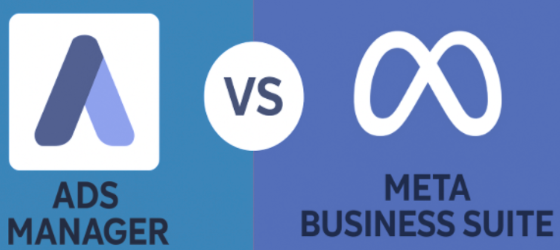
Many beginners ask:
“What’s the difference?”
- Meta Business Suite is simplified. It brings all your essential tools like content management, ads, messages, and insights into one easy-to-use dashboard, making daily business management more organized and efficient.
- Ads Manager is advanced and detailed. It offers deeper control over targeting, budgeting, placements, and campaign optimization, making it ideal for running complex and data-driven advertising campaigns.
If you are:
- Beginner → Use Business Suite
- Running complex funnels → Use Ads Manager
Both tools work together.
How Agencies Use It for Clients

Marketing agencies manage multiple client accounts using Business Suite.
Instead of asking for passwords, they:
- Request access
- Manage assets securely
- Track campaign performance
This is especially useful for growing agencies, where structured workflows improve client results and transparency.
You can internally link:
- Your Meta Ads services page
- Your Social Media Management page
- Your Case Studies page
Naturally placing them in:
“How We Help Businesses Scale Using Meta Tools” section.
How Digital Darter Uses It for Growth?

At Digital Darter, we use structured systems inside the platform to:
- Plan 30-day content calendars
- Track campaign ROI
- Manage ad creatives
- Optimize conversion tracking
Many business owners try running ads themselves but feel confused after spending money without results.
The difference isn’t the tool — it’s strategy.
That’s where expert execution makes the real impact.
Advanced Tips for 2026
1. Use AI Caption Suggestions
Meta now provides AI assistance.
2. Automate FAQs
Set automated replies for common questions.
3. Monitor Ad Frequency
Avoid ad fatigue.
4. Use A/B Testing
Test creatives before scaling budget.
Is Meta Business Suite Enough for Growth?

It depends on your strategy.
The tool gives you:
- Data
- Scheduling power
- Messaging control
- Ad management
But growth depends on:
- Clear funnel strategy
- Strong creative
- Audience targeting
- Conversion optimization
The platform is the vehicle. Strategy is the driver.
Final Thoughts
If you are serious about scaling on Facebook and Instagram in 2026, learning Meta Business Suite is not optional. It eliminates confusion by bringing all your tools into one place, centralizes control over content and ads, improves response speed through a unified inbox, and provides clear insights through built-in analytics to help you make smarter growth decisions.
But most importantly, it removes chaos from your marketing system.
Start simple by connecting your accounts properly, then focus on scheduling content consistently. Keep a close eye on your insights to understand what’s working, and optimize your strategy every week based on performance data to achieve steady growth.
Over time, small improvements create massive growth.
And if you ever feel stuck, getting professional support can save you months of trial and error.